> ## Documentation Index
> Fetch the complete documentation index at: https://labs.prompthon.io/llms.txt
> Use this file to discover all available pages before exploring further.

# OpenClaw 账号与 Onboarding

> 创建 Discord bot，可选配置 Tavily，安装 OpenClaw，并完成 onboarding。

<div className="not-prose my-4 rounded-md border border-gray-200 bg-gray-50 p-2 text-sm dark:border-gray-800 dark:bg-gray-900/40">
  <div className="mb-2 px-1 text-xs font-semibold uppercase tracking-wide text-gray-500 dark:text-gray-400">需要帮助？</div>

  <div className="flex flex-wrap gap-2">
    <a className="inline-flex items-center gap-2 rounded-md border border-gray-200 bg-white px-3 py-1.5 font-medium text-gray-700 no-underline shadow-sm hover:border-gray-300 hover:bg-gray-50 dark:border-gray-800 dark:bg-gray-950/60 dark:text-gray-200 dark:hover:bg-gray-900" href="https://discord.gg/sDE2HhGTg4" target="_blank" rel="noreferrer">
      <Icon icon="discord" iconType="brands" size={14} />

      <span>在 Discord 提问</span>
    </a>

    <a className="inline-flex items-center gap-2 rounded-md border border-gray-200 bg-white px-3 py-1.5 font-medium text-gray-700 no-underline shadow-sm hover:border-gray-300 hover:bg-gray-50 dark:border-gray-800 dark:bg-gray-950/60 dark:text-gray-200 dark:hover:bg-gray-900" href="https://github.com/Prompthon-IO/agent-systems-handbook/issues/new/choose" target="_blank" rel="noreferrer">
      <Icon icon="github" iconType="brands" size={14} />

      <span>提交 GitHub Issue</span>
    </a>

    <a className="inline-flex items-center gap-2 rounded-md border border-gray-200 bg-white px-3 py-1.5 font-medium text-gray-700 no-underline shadow-sm hover:border-gray-300 hover:bg-gray-50 dark:border-gray-800 dark:bg-gray-950/60 dark:text-gray-200 dark:hover:bg-gray-900" href="https://github.com/Prompthon-IO/agent-systems-handbook/blob/main/zh-Hans/SUPPORT.md" target="_blank" rel="noreferrer">
      <Icon icon="life-ring" size={14} />

      <span>支持指南</span>
    </a>
  </div>
</div>

完成 Windows 或 Mac 设置页面后，使用本页准备 OpenClaw 在 Discord 工作坊中需要的账号和凭据。

<Warning>
  Bot token 和 API key 都是 secrets。不要把它们放进截图、pull request、聊天消息或公开文档。
</Warning>

## 创建 Discord Bot

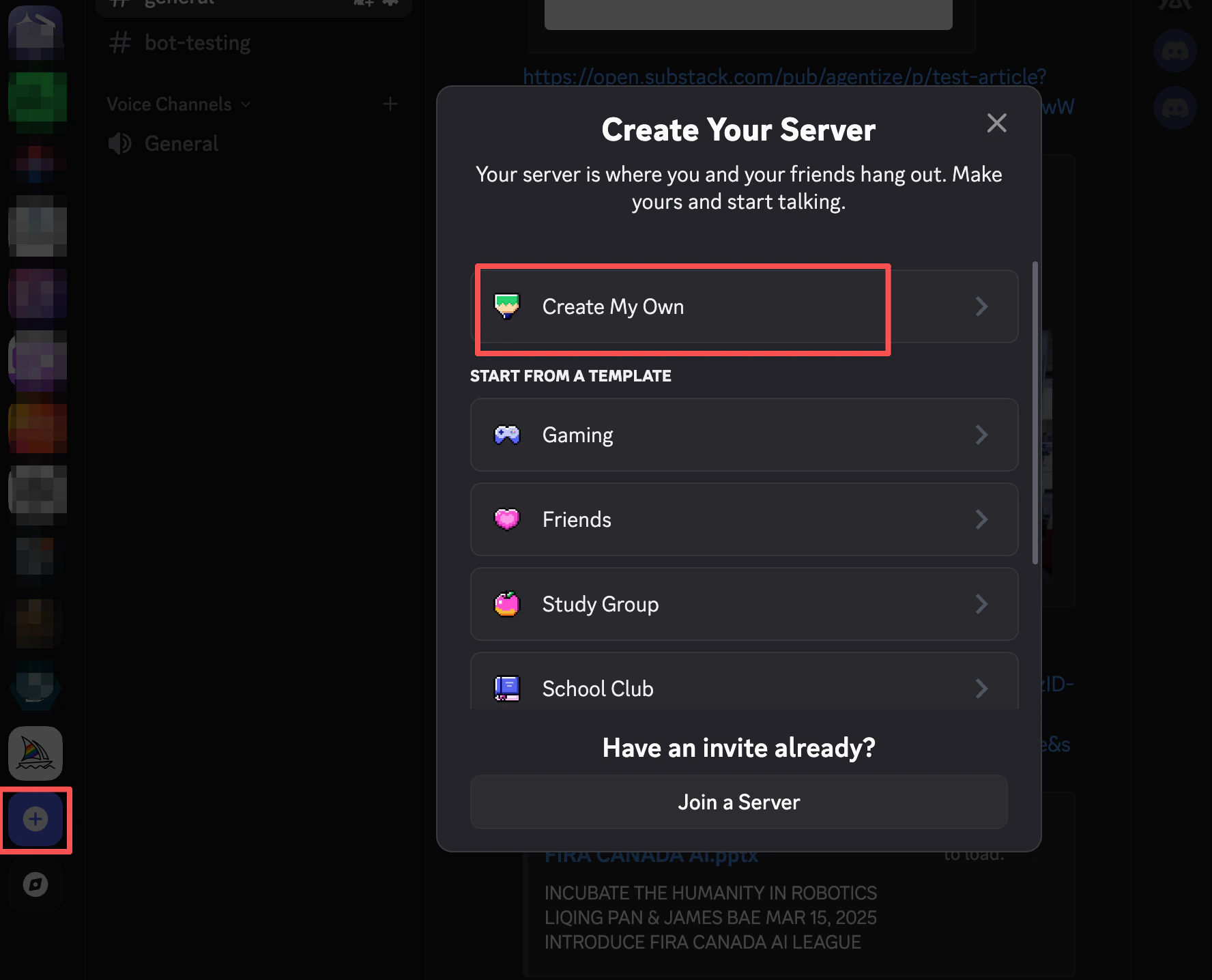
1. 从 [discord.com](https://discord.com/) 安装 Discord，并创建或登录账号。

<img src="https://mintcdn.com/agentizeai/ntzh5biAzyfS_g8Q/assets/openclaw-workshop/accounts-and-onboarding/discord-create-account.png?fit=max&auto=format&n=ntzh5biAzyfS_g8Q&q=85&s=e39290607c041f8eb26e5dcd44641869" alt="创建或登录 Discord 账号" width="1776" height="1436" data-path="assets/openclaw-workshop/accounts-and-onboarding/discord-create-account.png" />

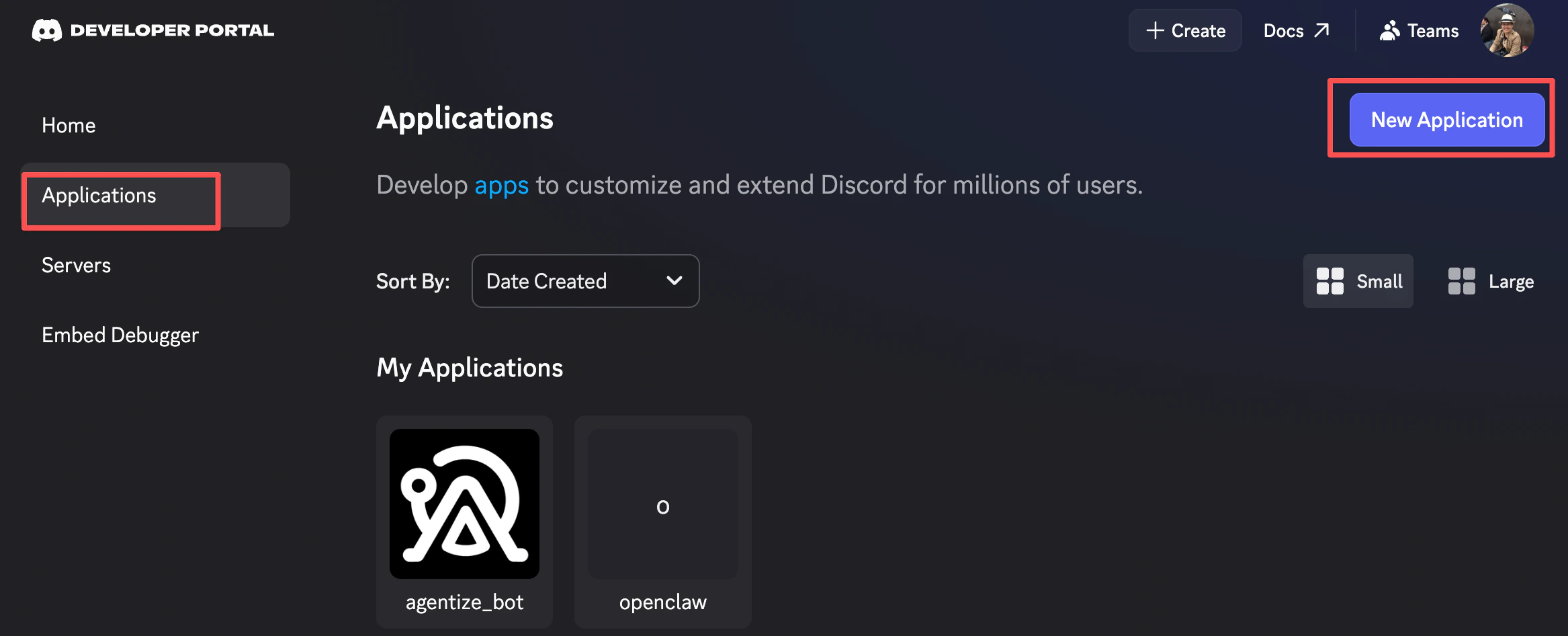
2. 打开 [Discord Developer Portal](https://discord.com/developers/home)，创建一个 application。

<img src="https://mintcdn.com/agentizeai/ntzh5biAzyfS_g8Q/assets/openclaw-workshop/accounts-and-onboarding/discord-create-application.png?fit=max&auto=format&n=ntzh5biAzyfS_g8Q&q=85&s=6ab883048783d7a6e2f727555d7fedc8" alt="创建 Discord application" width="2334" height="946" data-path="assets/openclaw-workshop/accounts-and-onboarding/discord-create-application.png" />

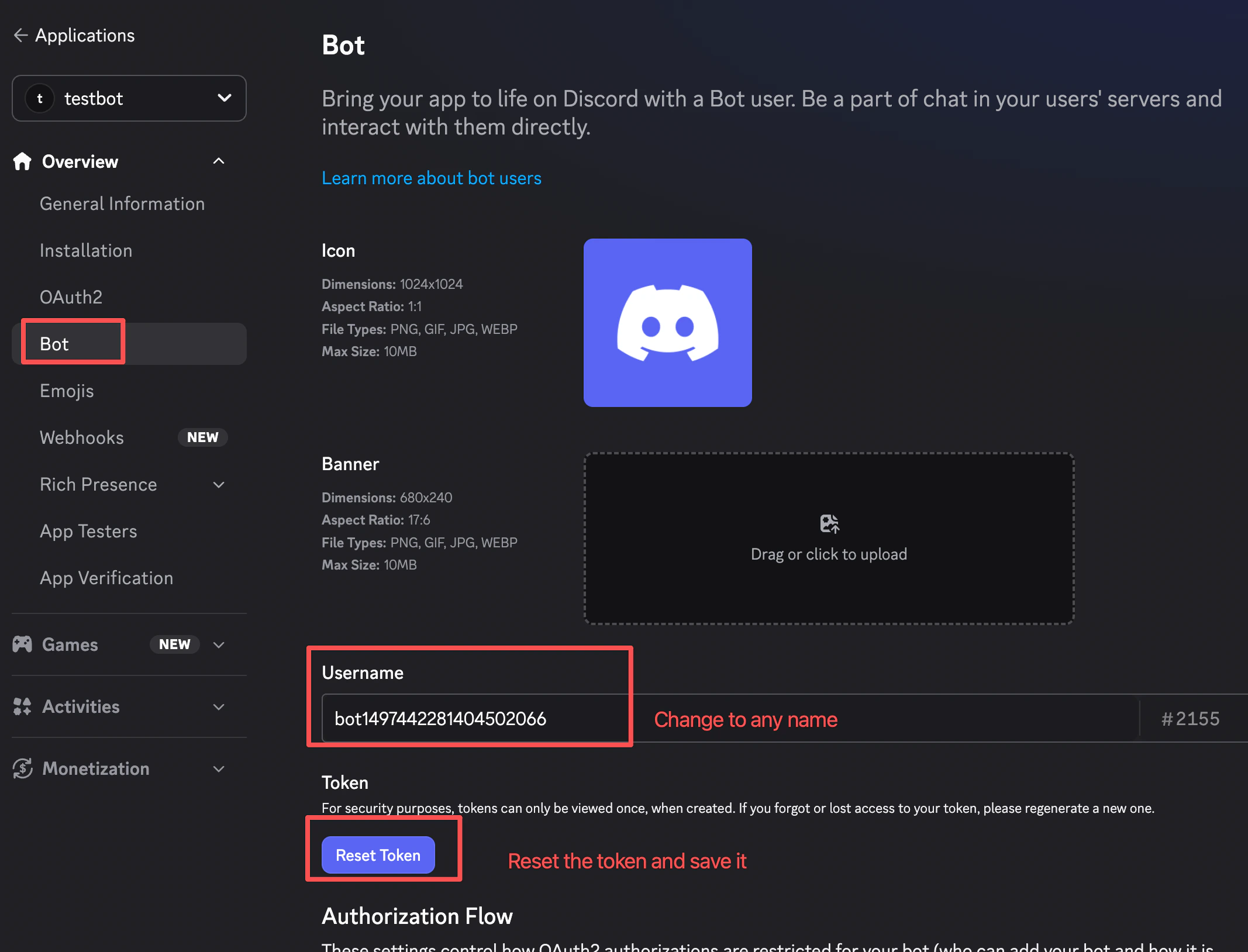
3. 给 application 添加 bot。

<img src="https://mintcdn.com/agentizeai/ntzh5biAzyfS_g8Q/assets/openclaw-workshop/accounts-and-onboarding/discord-create-bot.png?fit=max&auto=format&n=ntzh5biAzyfS_g8Q&q=85&s=0f9c6abb9c7d2d792b09d4b7c939e30a" alt="创建 Discord bot" width="2134" height="1628" data-path="assets/openclaw-workshop/accounts-and-onboarding/discord-create-bot.png" />

4. 启用工作坊流程需要的 bot intents。OpenClaw 工作坊需要启用 Message Content Intent。
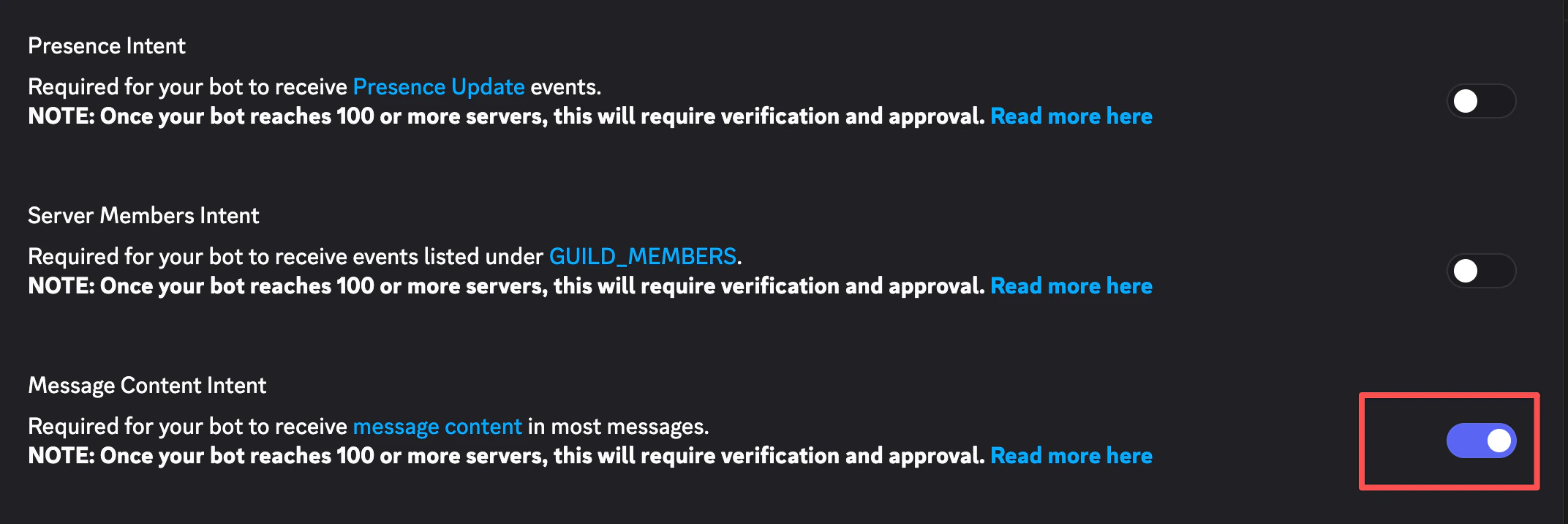
<img src="https://mintcdn.com/agentizeai/ntzh5biAzyfS_g8Q/assets/openclaw-workshop/accounts-and-onboarding/discord-save-bot-token.png?fit=max&auto=format&n=ntzh5biAzyfS_g8Q&q=85&s=893e7e2526a155d857b237d12745fce9" alt="启用 Discord bot 的 message content intent" width="2144" height="716" data-path="assets/openclaw-workshop/accounts-and-onboarding/discord-save-bot-token.png" />

5. 生成或复制 bot token，并保存在本地用于 onboarding。不要粘贴到源码文件中。

6. 将 bot 授权到工作坊使用的 Discord server。
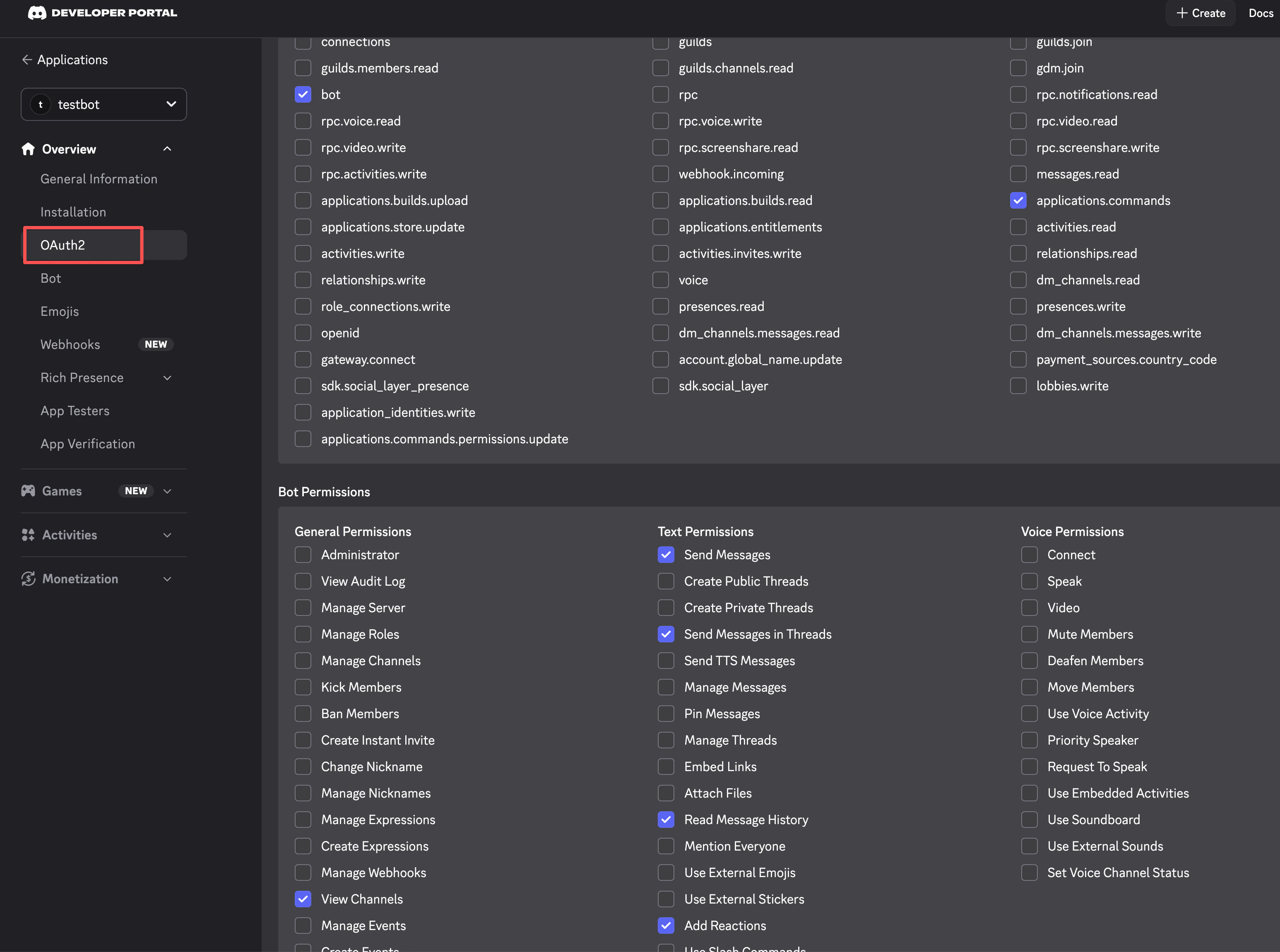
<img src="https://mintcdn.com/agentizeai/ntzh5biAzyfS_g8Q/assets/openclaw-workshop/accounts-and-onboarding/discord-authorize-bot.png?fit=max&auto=format&n=ntzh5biAzyfS_g8Q&q=85&s=7f2b99a4ee398dcb8c32c37a9d3aa2b0" alt="授权 Discord bot" width="3092" height="2300" data-path="assets/openclaw-workshop/accounts-and-onboarding/discord-authorize-bot.png" />

如果 Discord 给出 OAuth URL，请打开新标签页并粘贴该 URL。

<img src="https://mintcdn.com/agentizeai/ntzh5biAzyfS_g8Q/assets/openclaw-workshop/accounts-and-onboarding/discord-paste-oauth-url.png?fit=max&auto=format&n=ntzh5biAzyfS_g8Q&q=85&s=55d34eaf4dae46c03942c9994afd80e1" alt="在浏览器标签页中粘贴 Discord OAuth URL" width="2814" height="442" data-path="assets/openclaw-workshop/accounts-and-onboarding/discord-paste-oauth-url.png" />

## 可选：准备 Tavily Search

只有当你希望智能体在工作坊中执行 web search 时，才需要配置 Tavily。

1. 前往 [tavily.com](https://www.tavily.com/) 并创建账号。
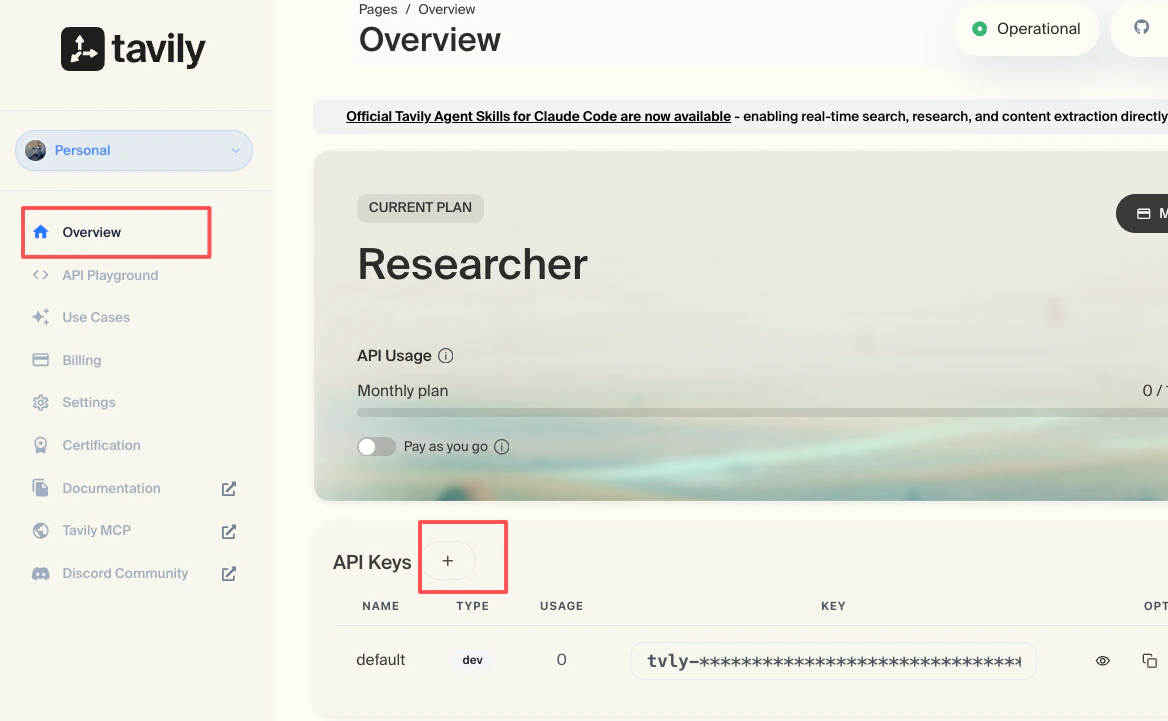
2. 创建 API key，并保存在本地用于 onboarding。

<img src="https://mintcdn.com/agentizeai/ntzh5biAzyfS_g8Q/assets/openclaw-workshop/accounts-and-onboarding/tavily-api-key.png?fit=max&auto=format&n=ntzh5biAzyfS_g8Q&q=85&s=d7f908f1135f4cab722d8f39a9d5e991" alt="创建 Tavily API key" width="1168" height="721" data-path="assets/openclaw-workshop/accounts-and-onboarding/tavily-api-key.png" />

如果跳过 Tavily，智能体仍然可以运行本地工作流，但 web-search 功能不可用。

## 安装 OpenClaw

安装 CLI：

```bash theme={null}
npm install -g openclaw@latest
```

检查安装版本并运行诊断：

```bash theme={null}
openclaw --version
openclaw doctor
```

## 运行 Onboarding

启动 onboarding：

```bash theme={null}
openclaw onboard --install-daemon
```

在 onboarding 过程中：

* Channel 选择 `Discord`。
* 按提示粘贴 Discord bot token。
* 除非工作坊有更窄的 channel policy，否则允许所有 channels。
* Search provider 选择 `Tavily`，如果已创建 API key，就粘贴进去。
* Skills 勾选 `summarize`。
* Hooks 勾选 `command-logger` 和 `session-memory`。
* Bot launch 选择 `hatch in terminal`。

完成 onboarding 后，打开 [OpenClaw 命令参考](/zh-Hans/workshops/openclaw/commands) 作为快速查询页。